Importing DJI logs: from the controller to the flight logbook in five minutes
Every flight leaves a file in the DJI controller with the route, times and altitudes. Upload those files to FLAARE and the logbook entries create themselves. Step by step: where the logs are, how to upload them all at once and what is left to fill in.
The post on the flight logbook in a volunteer fire brigade said that copying data from the drone into a notebook means doing by hand something that already exists. This post shows how that “something” gets into the flight logbook in FLAARE. The whole procedure fits in five steps and takes a few minutes, even after an operation where several aircraft flew.
What the drone records by itself
The DJI controller saves every flight in a separate file. The name starts with DJIFlightRecord_, and inside is everything a logbook entry should contain:
- a full-resolution GPS track,
- take-off and landing times,
- altitudes and speeds,
- battery usage,
- flight events, for example battery warnings or flight mode changes,
- the drone’s serial number.
Two things are missing from the log: who flew and why. The pilot, the operation category and the mission type are filled in by a person. More on that in step five.
Step 1. FLAARE on the controller
FLAARE runs in a browser, including the one on the DJI controller. There is no need to copy files to a computer or install anything. The pilot signs in to their account on the controller, picks Import in the Logbook section of the side menu and sees the “Import logs” page with a file upload field.
Any pilot can run the import from their own account. There is no need to wait for the operator. The same page works on a computer: if the unit’s logs end up on a disk anyway, they can be uploaded from there.
Step 2. All logs at once
On the import page it is enough to click “choose from disk” and point to the files. On the controller the logs live in the folder:
Internal storage / DJI / com.dji.industry.pilot / FlightRecord
There is no need to work out which files are new. The fastest way is to long-press the first file, choose “Select all” in the menu and upload the whole folder. The number of files is not limited, and a single log can be up to 100 MB. The application uploads the files in batches and shows the progress.
The system accepts .txt files from a controller running DJI Pilot 2, and also from other apps built on the DJI Mobile SDK.
Step 3. The system checks what it already knows
Selecting the whole folder does not create duplicates. Before uploading, the application checks every file and sends only those that are not yet in the organisation’s logbook. After a moment a summary appears along the lines of: 12 new logs sent, 38 skipped because they are already in the logbook.
The same happens when two users upload the same log, for example a pilot and the operator. One logbook entry is created. This keeps the routine in a unit simple: after every operation everything gets uploaded, and the system separates new from old by itself.
Step 4. The import queue
Uploaded files go into a queue. The import page shows today’s queue and the history: how many files are waiting, how many are being processed, how many are finished and how many failed. Every file has a status: Queued, Processing, Completed, Error or Duplicate. A completed import shows a report with the number of recorded points and events, and a link straight to the flight entry. While something is still processing, the Import item in the menu shows a counter of active imports.
If an import fails, the operator has a Retry button. The original files are kept for 30 days, so during that time there is no need to upload them again. The flight entry itself stays in the logbook for the whole licence period.
Step 5. What the drone does not know
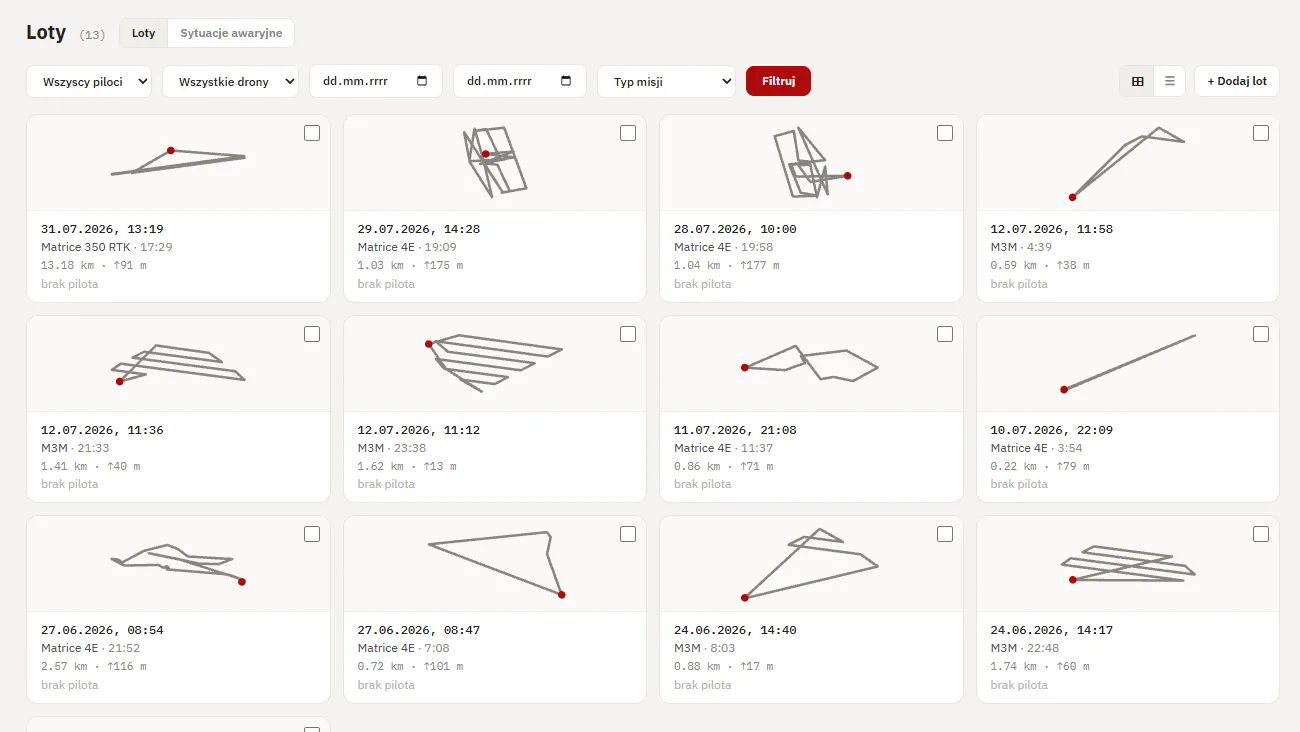
The entry is ready, but the log does not record who was holding the controller. On the flight list new entries are marked “no pilot”. The pilot who made the flight clicks “Assign me” next to it. The operator can select a dozen flights at once and assign a pilot in bulk.
The second thing is the operational data: operation category, mission type and flight mode. Every flight has a separate tab for this. Three fields picked from lists, a few clicks. They are worth filling in as flights come in, because they feed straight into the logbook export and save work at the quarterly summary.
What ends up in the logbook
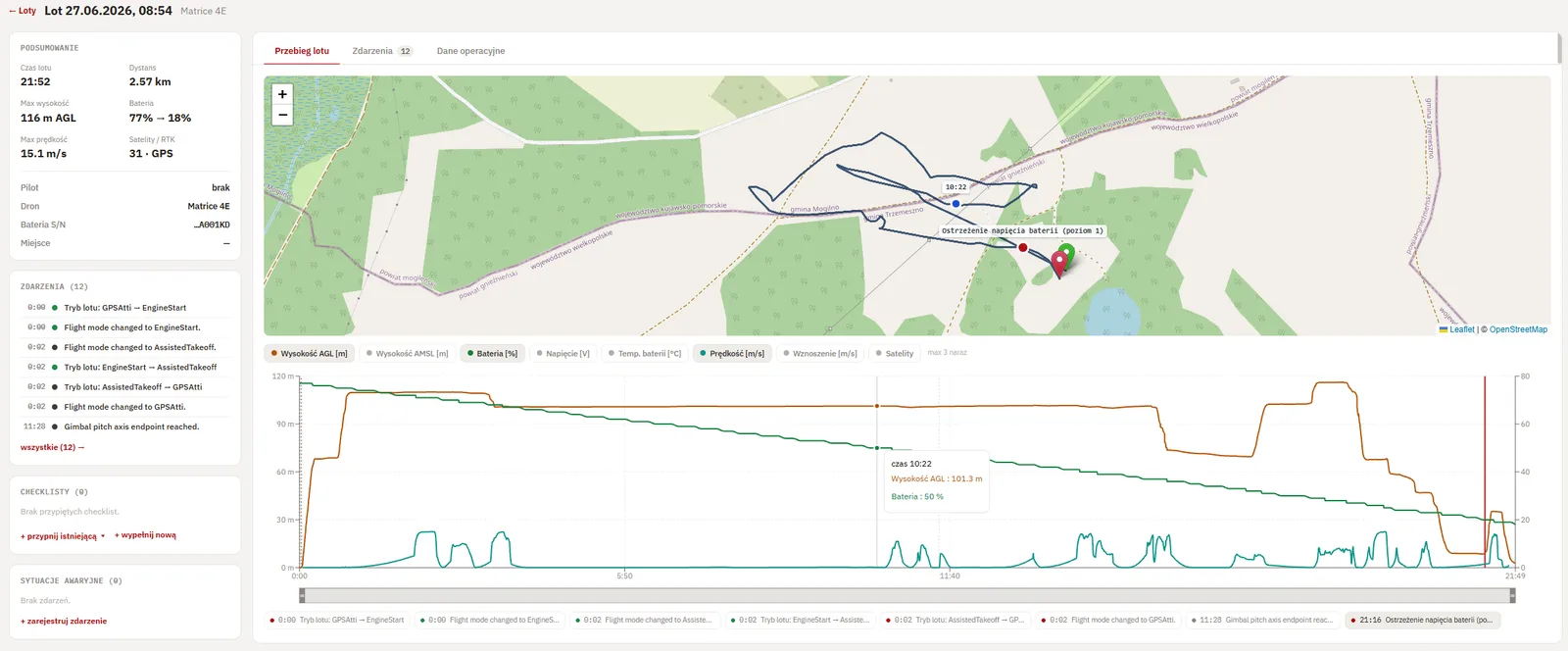
Every imported flight opens as a full view: the route on a map, an event timeline and a telemetry chart. Hovering over the chart shows where the drone was at that moment. Clicking an event, for example a battery voltage warning, marks its place on the route.
On the flight list every entry has a route thumbnail, date, drone, flight time, distance and maximum altitude. The list can be narrowed by pilot, drone and date range. The whole logbook exports to an XLSX file with the operator number, pilots and operation categories, if needed only for a chosen period or a single pilot.
When there is no log
Sometimes a flight leaves no log: a controller from another manufacturer, borrowed equipment, a file that went missing. Such a flight can be added manually: date, time, duration, drone, pilot and a location on the map. A manual entry goes into the logbook and the export on equal terms with the others, only without a route and telemetry. If the log turns up later, it is enough to import it and delete the manual entry, because the system does not merge them automatically.
Five minutes after the operation
Over time a simple routine settles in. After an operation or an exercise the pilot opens FLAARE on the controller, selects the whole log folder and uploads it. The system skips what it already knows, and the new flights appear on the list. What remains is to assign oneself to the flights and fill in the category. The flight logbook is up to date the same day, with no notebook and no copying.
Limits and statuses are described in detail in the log import documentation. What FLAARE is and what it is not is covered in a separate post.
See FLAARE in action
Online presentation, about 30 minutes. No account and no obligations.
Book a demo